Unlock Your Kindle's Full Potential: A Complete Jailbreaking Guide
Introduction
If you've ever felt that your Kindle is capable of more than Amazon lets you do, you're not alone. The hardware is powerful, but the software limits you to basic reading and a few predefined features. For example, you can't even set a custom wallpaper—a simple feature that many other devices allow. Jailbreaking your Kindle removes those restrictions, giving you access to hidden features like custom screensavers, advanced reading statistics, and even third-party apps. This guide walks you through the process safely and effectively.
What You Need
Before you begin, gather the following:
- A compatible Kindle model (see compatibility section)
- A micro-USB cable (for older models) or USB-C cable (for newer models)
- A computer (Windows, macOS, or Linux)
- Jailbreak files specific to your Kindle model and firmware version (download from a trusted source like MobileRead forums)
- An empty microSD card (optional, for backup)
- Patience and a calm Internet connection
Compatibility: Most Kindle models from the Kindle Keyboard (3rd Gen) to the latest Paperwhite and Oasis can be jailbroken, but support varies by firmware version. Check forums for your exact model before proceeding.
Step-by-Step Instructions
Step 1: Check Your Kindle's Firmware and Model
Go to Settings > Device Options > Device Info on your Kindle. Note the Device Serial Number and Firmware Version. This information determines which jailbreak method you'll use. Older firmware versions (below 5.14.2) are easier to jailbreak than newer ones. If your Kindle is on a very recent firmware, you may need to downgrade first—research this carefully.
Step 2: Download the Correct Jailbreak Files
Visit the MobileRead forums or a trusted repository. Look for the jailbreak package that matches your Kindle model and firmware. Common packages include WinterBreak for newer models or the Factory Reset Jailbreak for older ones. Download the ZIP file and extract it to your computer. You'll see a folder with .bin update files and sometimes a script.
Step 3: Transfer Files to Your Kindle
Connect your Kindle to your computer via USB. It will appear as a removable drive. Copy the extracted jailbreak folder (or the specific .bin file if instructed) to the Kindle's root directory. Do not place it inside any folder. Safely eject the Kindle from your computer.
Step 4: Install the Jailbreak via Update Mechanism
On your Kindle, go to Settings > Device Options > Update Your Kindle. If the update option is grayed out, you may need to restart your Kindle. Tap it and confirm. The Kindle will reboot and apply the jailbreak. This usually takes a few minutes. Once it's done, your Kindle will restart with the jailbreak installed. You won't see any obvious changes yet—the jailbreak works in the background.
Step 5: Verify the Jailbreak
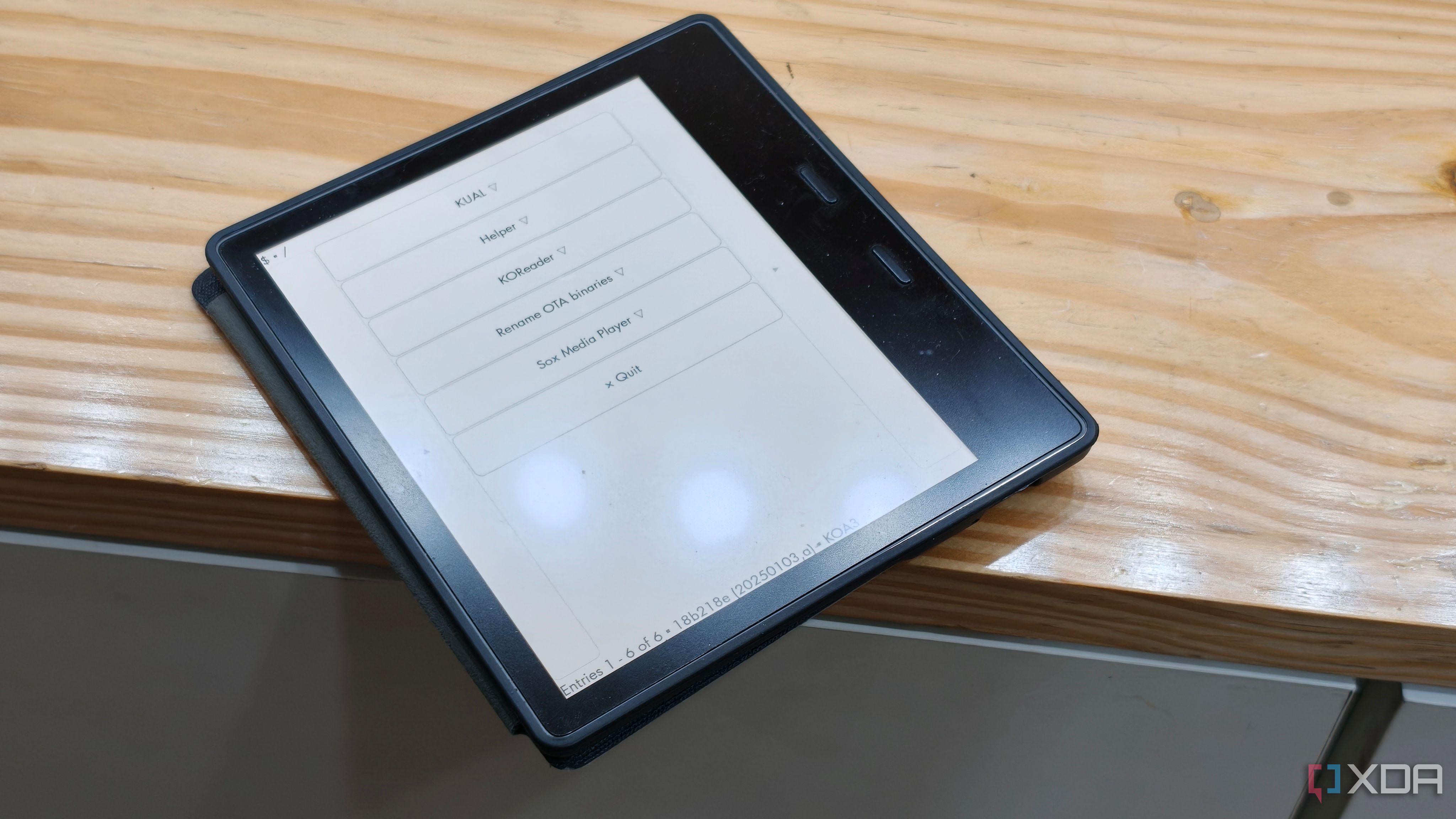
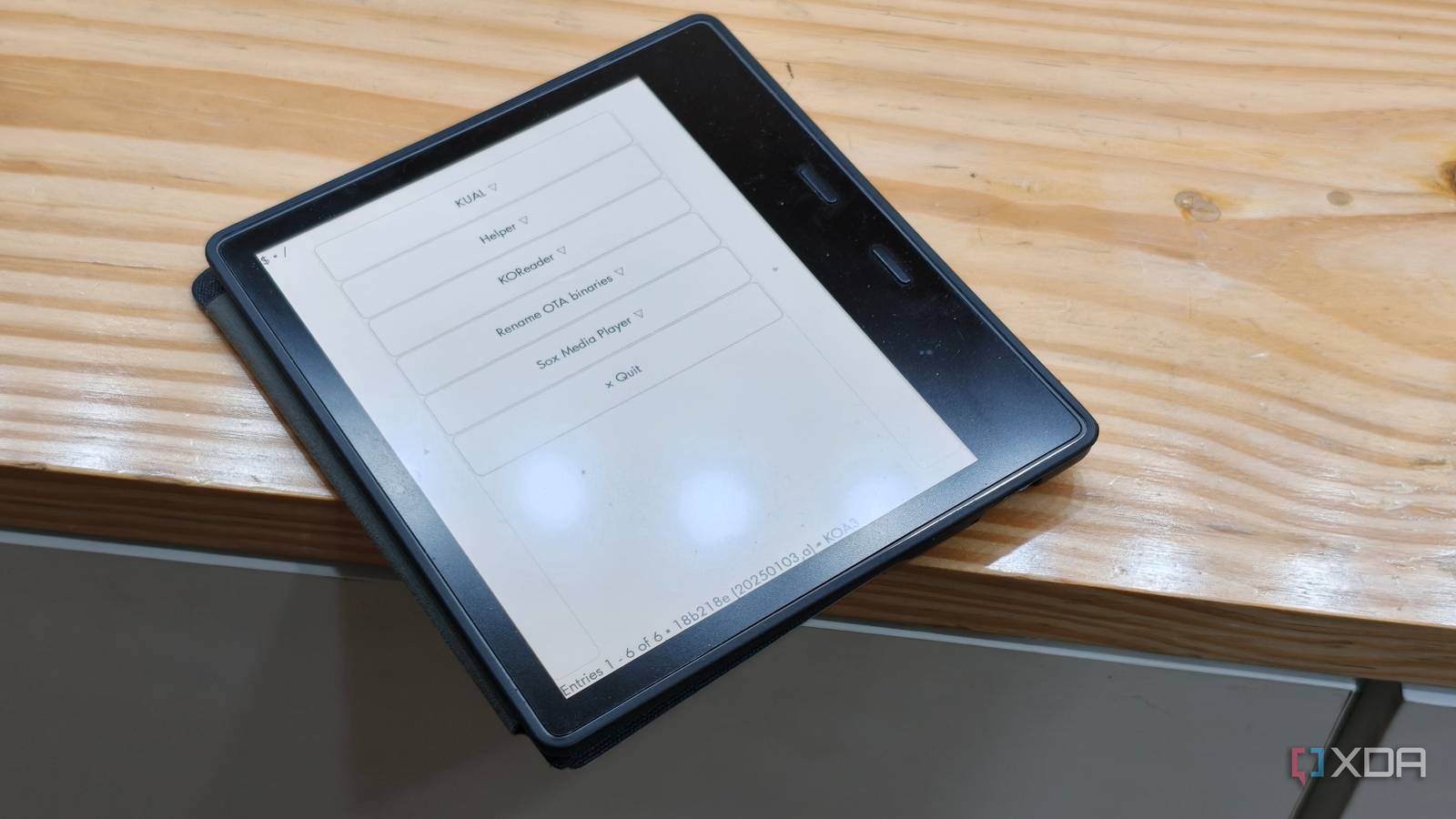
To confirm success, go to the search bar and type ;711 (or ;debug on some models). If a debug menu appears, you're jailbroken. For a more visual check, install a simple package like KUAL (Kindle Unified Application Launcher) after jailbreaking. KUAL gives you a menu system to run third-party apps.
Step 6: Install Essential Extensions (Optional but Recommended)
Now that your Kindle is jailbroken, you can add features:
- Custom Screensavers: Use the Kindle ScreenSavers Hack to set any image as your lock screen wallpaper. Replace the default book covers.
- Screen Rotation: Enable landscape mode for reading PDFs.
- Reader Stats: Install KOReader for detailed reading statistics, better file format support, and more.
- Fonts: Add custom fonts system-wide without side-loading.
Each extension has its own installation instructions—usually copying a folder to the Kindle's extensions directory. Always read the manual.
Step 7: Restore or Backup (Important)
Jailbreaking voids your warranty and can sometimes cause instability. Back up your Kindle's original firmware using tools like Kindle Fix or by creating a system image. If something goes wrong, you can restore your Kindle to factory settings (though jailbreak may persist). For a complete undo, follow the specific removal guide for your model.
Tips and Warnings
Important Tips:
- Always use a reliable power source—a disconnection during jailbreaking can brick your device.
- Keep your Kindle on a stable Wi-Fi to avoid partial downloads.
- Don't update your Kindle firmware after jailbreaking unless you know the jailbreak is compatible. Updates often patch exploits.
- Join the MobileRead forums for model-specific advice. The community is active and helpful.
- If your Kindle freezes, hold the power button for 40 seconds to force reboot.
Warnings:
- Jailbreaking may be against Amazon's terms of service, though they rarely enforce it. You might lose access to Amazon services like Kindle Unlimited or cloud syncing if detected.
- Some jailbreaks are reversible, but not all. Be prepared to live with the modifications or buy a new Kindle.
- Do not download jailbreak files from untrusted sources—they could contain malware.
With your Kindle now jailbroken, you can finally make it truly yours. Custom wallpapers, better reading software, and advanced features are just a few clicks away. Enjoy the freedom!
Related Discussions